To ensure the store opens correctly within Telegram, you need to configure the Mini App interface. First, copy your store link from the WordPress plugin settings (EGodfather -> Connections section).
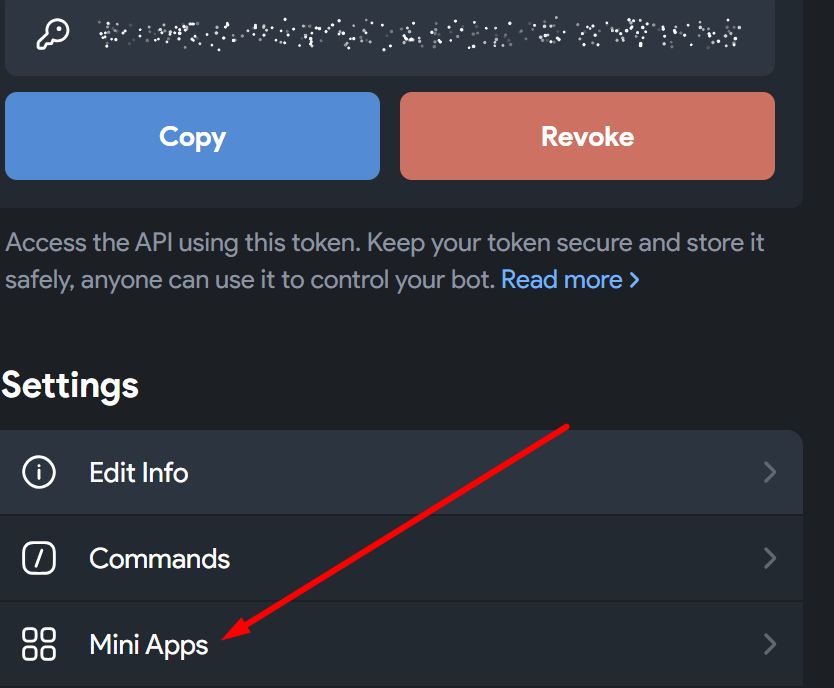
- In Telegram, open @BotFather, select your bot, and go to the Mini Apps section.
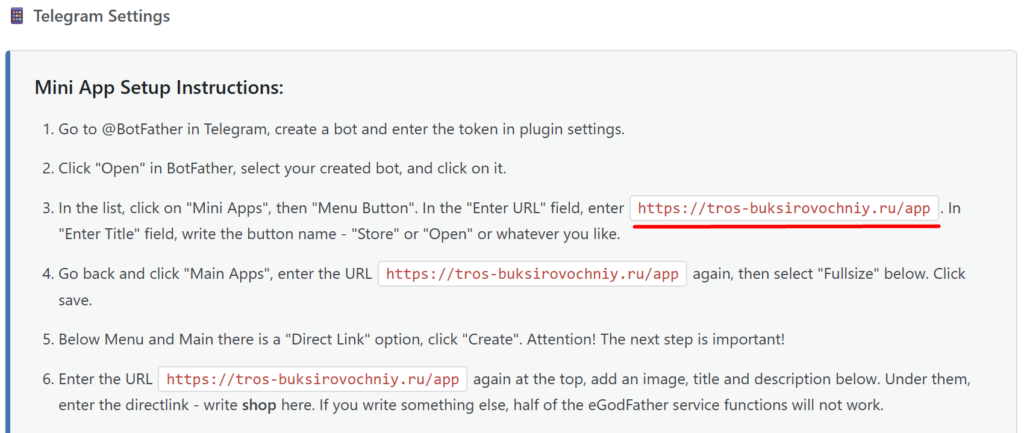
- Menu Button Setup: Click Menu button. In the URL field, paste the link to your store. In the Title field, enter the button name (e.g., “Shop”, “Open”, or “Store”) that will be displayed to users in the bottom left corner.
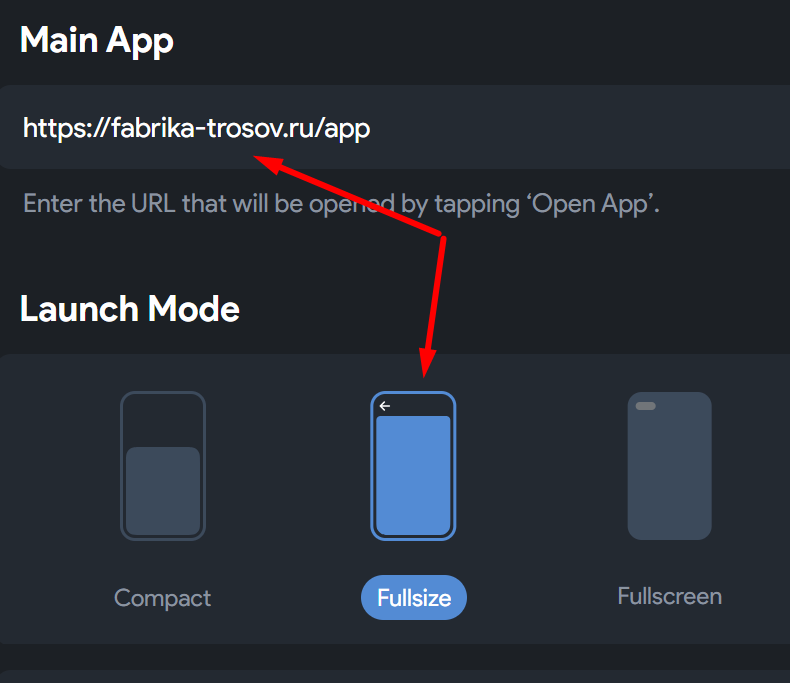
- Main App Setup: Go back one step and select Main App. Paste the link into the URL field again. In the Launch Mode setting, be sure to select Fullsize (Fullscreen mode is not suitable for stores). Save the changes.
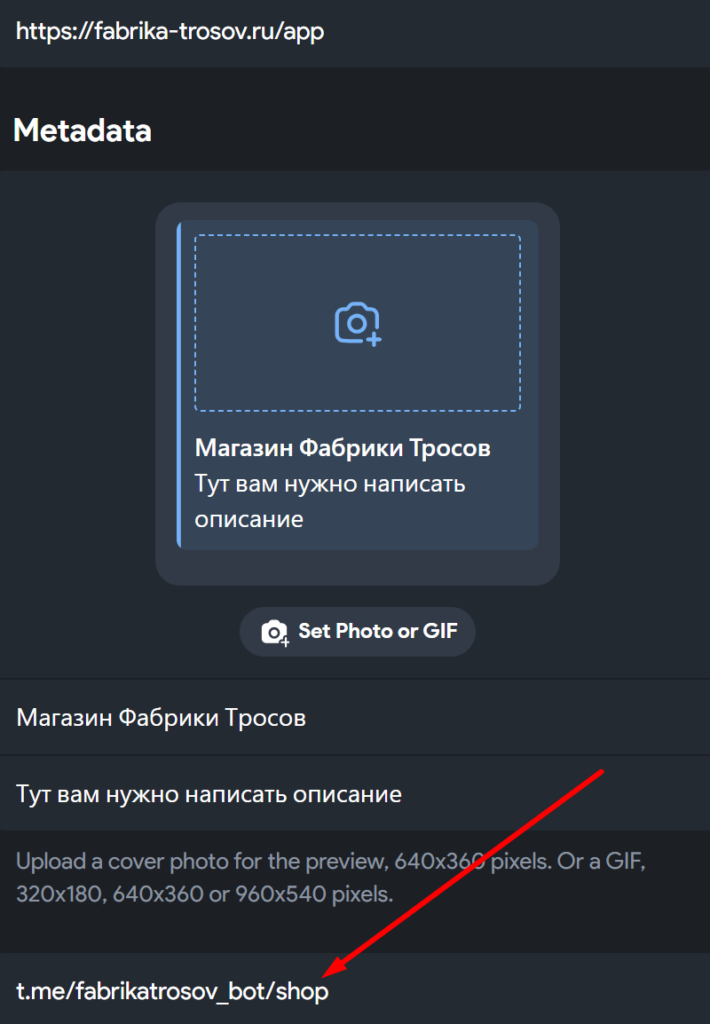
- Direct Links Setup: Return to the menu and select Direct Link, then click Create. Enter the store URL, add a logo, and specify a Title and Description.
- Important: In the short name field, you must enter the word shop. Using any other word will lead to issues with notification delivery and data collection. Save the settings and verify the input.
- Test the performance: Open the chat with your bot. A configured button should appear in the bottom left corner, opening the storefront.